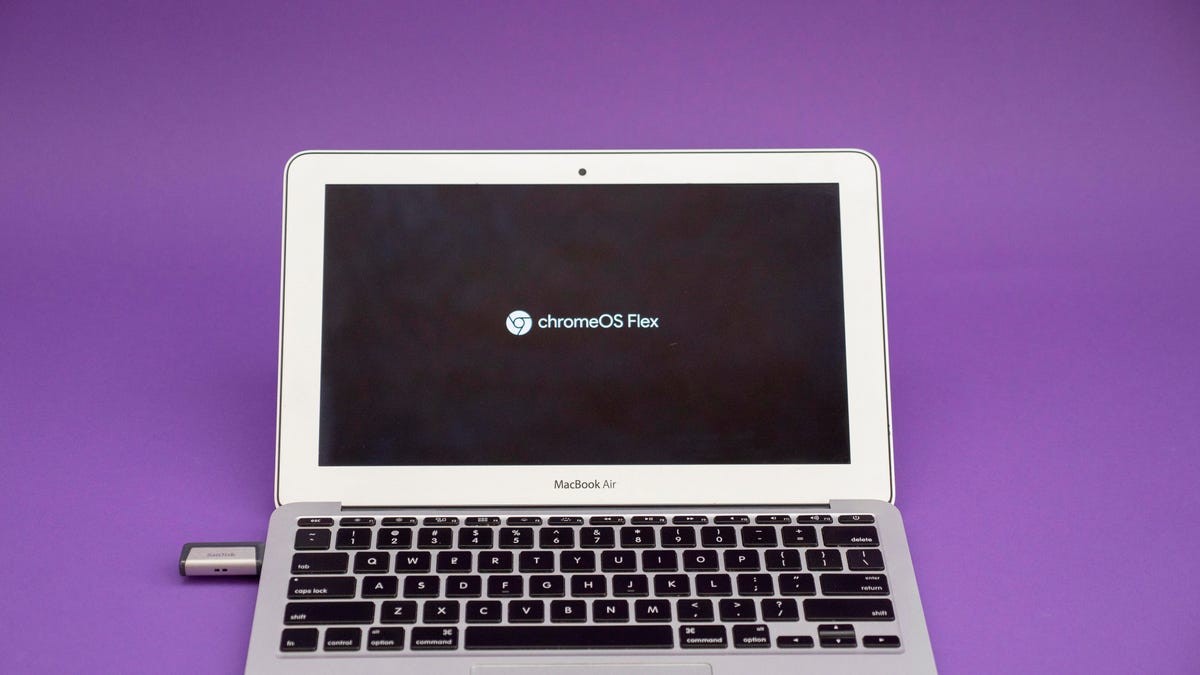
For millions of computer owners, a looming deadline is approaching. As Microsoft winds down support for Windows 10, many users are finding themselves stuck with hardware that is technically functional but officially “obsolete” because it cannot meet the strict system requirements for Windows 11.
This creates a significant security risk. Without regular operating system updates, devices become vulnerable to exploits that hackers can easily bypass. However, you don’t necessarily need to buy a new computer to stay secure. Google’s ChromeOS Flex offers a lightweight, modern alternative that can transform an aging PC or Mac into a fast, functional machine.
What is ChromeOS Flex?
ChromeOS Flex is a version of Google’s operating system designed specifically to be installed on existing hardware. While it isn’t exactly the same as the software found on a standard Chromebook, it provides a very similar experience.
Following Google’s acquisition of Neverware (the creators of CloudReady) in 2020, ChromeOS Flex has become a streamlined way to repurpose laptops that struggle under the weight of Windows or macOS.
Key Features & Limitations:
– The Good: It is incredibly lightweight, making old processors feel snappy again. It includes the official Chrome browser, support for Google Family Link, and “Phone Hub” for connecting Android devices.
– The Trade-off: Unlike standard Chromebooks, ChromeOS Flex does not support the Google Play Store. This means you cannot run native Android apps; you will rely on web-based applications and browser extensions.
– Compatibility: While it works on most Intel or AMD x86-64-bit systems (ideally those made after 2010), Google maintains a list of “certified” models to guarantee full functionality.
A New Way to Get Started
To make the transition even easier, Google has partnered with refurbished electronics retailer Back Market to offer ChromeOS Flex USB Kits for just $3. This provides a “plug-and-play” solution for those who want a hassle-free installation process. Of course, the software itself remains entirely free to download for anyone with a spare USB drive.
How to Install ChromeOS Flex
If you want to try ChromeOS Flex, you have two choices: run it directly from a USB drive to test it out without changing your computer, or perform a full installation to make it your primary operating system.
📋 Prerequisites
Before you begin, ensure you have the following:
– An 8GB or larger USB flash drive or SD card.
– A computer with the Chrome browser installed (Windows, Mac, or Linux).
– Important: The installation process will completely erase your hard drive. Back up all important files before proceeding.
🛠 Step-by-Step Installation Guide
-
Create the Installer:
- Open Chrome and install the Chromebook Recovery Utility extension from the Chrome Web Store.
- Launch the extension and select “Select a model from a list.”
- Choose Google ChromeOS Flex as the manufacturer and product.
- Insert your USB drive, select it, and click “Create now.” This process typically takes about 10–20 minutes.
-
Boot from the USB:
- Insert the prepared USB drive into the old computer and turn it off.
- Power the device on and immediately press the Boot Menu key (this varies by brand; for example, the Option key on Mac).
- Select your USB drive from the list of bootable devices.
-
Test or Install:
- Once the ChromeOS Flex welcome screen appears, you can choose to “Try it first” (running solely from the USB) or “Install ChromeOS Flex” (wiping the computer for permanent use).
- Follow the on-screen prompts to connect to Wi-Fi and sign in with your Google Account.
Pro Tip: If you are unsure if your hardware is compatible, always choose the “Trial run” option from the USB drive first. This allows you to check if your keyboard, trackpad, and Wi-Fi work correctly before committing to a full installation.
Summary
ChromeOS Flex is a powerful tool for sustainability and security, allowing users to bypass the “planned obsolescence” of modern operating systems. By turning an old laptop into a lightweight web machine, you can extend the life of your hardware and avoid the security pitfalls of unsupported software.