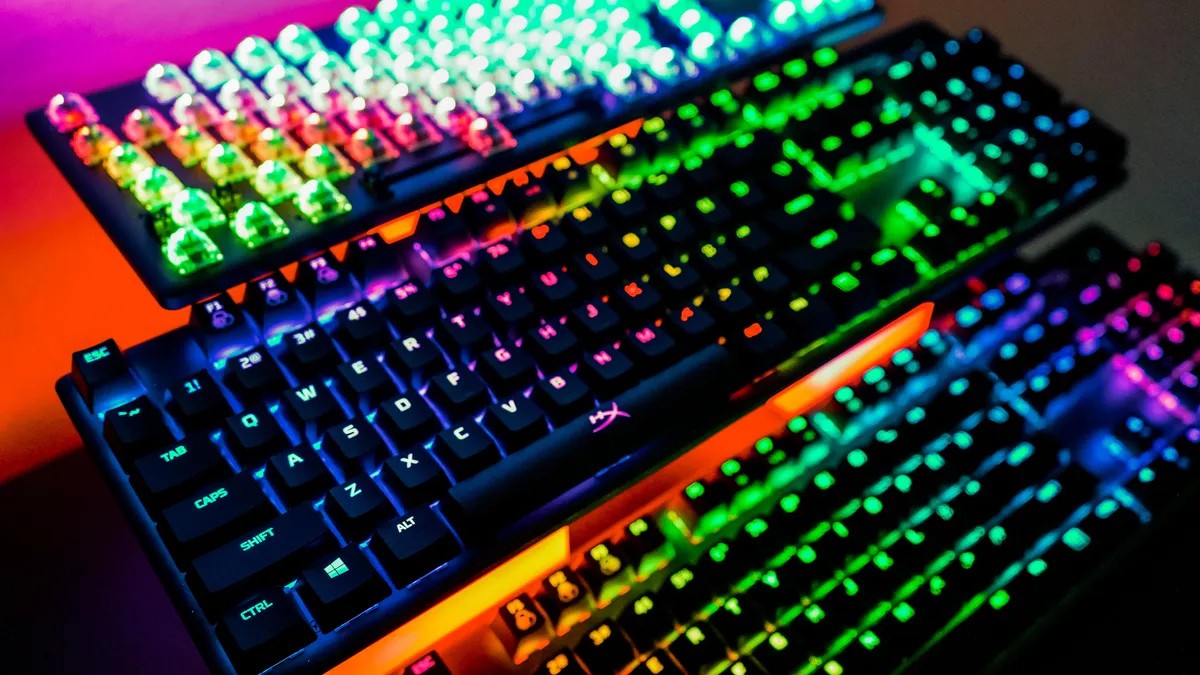
Windows 11 has fully replaced Windows 10, meaning millions of users are adapting to the new operating system. While the transition isn’t overly complex, mastering keyboard shortcuts is the fastest way to unlock its full potential. These shortcuts aren’t just about speed; they fundamentally change how you interact with your PC, reducing reliance on menus and clicks.
This guide compiles 73 essential Windows 11 keyboard shortcuts, from basic commands to advanced features. Whether you’re new to the OS or a seasoned user, these combinations will improve productivity and streamline your workflow.
Basic Shortcuts for Daily Use
These shortcuts are the foundation of efficient Windows 11 operation. They cover core functions like copying, pasting, and undoing actions.
- Ctrl + A : Select all items in the current window.
- Ctrl + C / Ctrl + Insert : Copy selected content.
- Ctrl + V / Shift + Insert : Paste copied content.
- Ctrl + X : Cut selected content.
- Ctrl + Z : Undo the last action.
- Ctrl + Y : Redo an undone action.
- Ctrl + N : Open a new window of the current application (e.g., File Explorer).
- Alt + F4 : Close the current window or application.
- Alt + Tab : Switch between open applications.
- Shift + Delete : Permanently delete selected items without using the Recycle Bin.
Start Menu and Taskbar Shortcuts
These shortcuts give you precise control over the Start Menu and Taskbar, streamlining navigation.
- Windows key / Ctrl + Esc : Open the Start Menu.
- Windows key + X : Open the hidden Start Menu (Power User Menu).
- Windows key + T : Cycle through pinned apps on the Taskbar.
- Windows key + [Number] : Open the app pinned in the corresponding position on the Taskbar (e.g., Windows key + 1 opens the first pinned app).
- Windows key + Alt + [Number] : Open the right-click menu for the app in the corresponding pinned position.
- Windows key + D : Show or hide the desktop.
- Windows key + , (comma) : Display the desktop briefly.
Screenshot Shortcuts
Windows 11 offers multiple ways to capture your screen, each with its benefits.
- PrtScn : Take a screenshot and save it to the clipboard.
- Windows key + PrtScn : Take a screenshot and save it directly to the Pictures > Screenshots folder.
- Windows key + Shift + S : Open the Snipping Tool for customizable screenshots.
Emoji, GIFs, and Symbols Shortcuts
Adding visual elements to your text is now faster than ever.
- Windows key + . (period) : Open the emoji panel. Search or select emojis directly.
- GIF Button (within emoji panel) : Search and insert GIFs into text fields.
Desktop Management Shortcuts
These shortcuts optimize window arrangement and virtual workspace management.
- Windows key + M : Minimize all open windows.
- Windows key + Shift + M : Restore minimized windows.
- Windows key + Home : Minimize all windows except the active one.
- Windows key + Up arrow : Maximize the active window.
- Windows key + Shift + Up arrow : Maximize the window vertically while maintaining its width.
- Windows key + Down arrow : Minimize the active window.
- Windows key + Left/Right arrow : Snap the window to the left or right half of the screen.
- Windows key + Alt + Up/Down arrow : Snap the window to the top or bottom half of the screen.
- Windows key + Shift + Left/Right arrow : Move the window to the next monitor.
- Windows key + Tab : Open Task View (virtual desktops).
- Windows key + Ctrl + D : Create a new virtual desktop.
- Windows key + Ctrl + Left/Right arrow : Switch between virtual desktops.
- Windows key + Ctrl + F4 : Close the current virtual desktop.
Advanced Windows Key Shortcuts
These shortcuts unlock deeper system functionality.
- Windows key + A : Open the Action Center.
- Windows key + S / Windows key + Q : Open Cortana (text mode) for search.
- Windows key + C : Open Microsoft Copilot.
- Windows key + E : Open File Explorer.
- Windows key + F : Open the Feedback Hub.
- Windows key + Ctrl + F : Search for PCs on the network.
- Windows key + G : Open the Game Bar.
- Windows key + H : Open the Share sidebar.
- Windows key + I : Open the Settings menu.
- Windows key + K : Open the Connect sidebar (Bluetooth devices).
- Windows key + L : Lock your computer.
- Windows key + O : Lock screen orientation.
- Windows key + P : Open the presentation/projection sidebar.
- Windows key + R : Open the Run window.
- Windows key + U : Open Ease of Access center.
- Windows key + W : Open the Windows Ink Workspace.
- Windows key + (+) / (-) : Zoom in/out with Magnifier.
- Windows key + Esc : Exit Magnifier.
F Key Shortcuts
These shortcuts provide quick actions in various applications.
- F2 : Rename a selected item.
- F3 : Search for files in File Explorer.
- F4 : Highlight the address bar in File Explorer.
- F5 : Refresh the active window.
- F6 : Cycle through elements in a window.
- Alt + F8 : Show login password on the start screen.
- F10 : Activate the menu bar in the active window.
Command Prompt Shortcuts
For users who prefer the command line, these shortcuts enhance efficiency.
- Ctrl + C / Ctrl + Insert : Copy text.
- Ctrl + V / Shift + Insert : Paste text.
- Ctrl + A : Select all text on the current line.
- Ctrl + Up/Down : Move the screen one line up or down.
- Ctrl + F : Open the Find window.
- Ctrl + M : Enter Mark mode (allows mouse selection).
- Shift + Up/Down : Move the cursor up or down and select text.
- Shift + Left/Right : Move the cursor left or right and select text.
- Ctrl + Shift + Left/Right : Move the cursor one word left or right and select text.
- Shift + Page Up/Down : Move the cursor up or down one screen and select text.
- Shift + Home/End : Move the cursor to the beginning or end of the line and select text.
- Ctrl + Shift + Home/End : Move the cursor to the beginning or end of the screen buffer and select text.
Conclusion:
Mastering these 73 Windows 11 keyboard shortcuts is a direct path to increased productivity. By reducing reliance on mouse clicks and menus, you can streamline your workflow and experience a faster, more efficient computing environment. The learning curve is minimal, but the long-term benefits are significant for any Windows user.