


GPU-Z is not just another utility. It is the standard for hardware diagnostics dedicated to your graphics card. Whether you are a power user tweaking settings or a complete beginner trying to understand what is happening under the hood, this free software delivers. It updates regularly. It stays relevant.
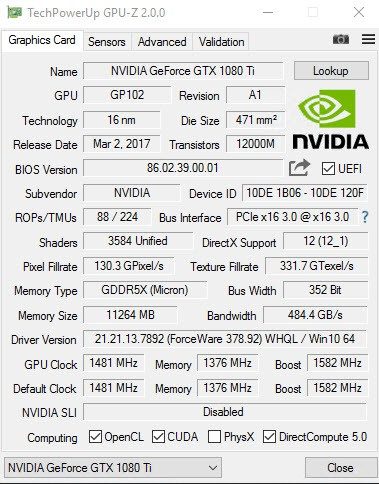
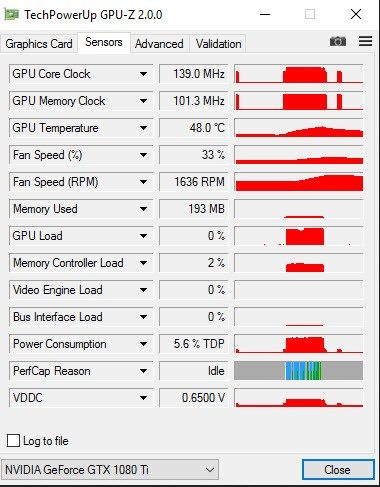
The tool focuses on one thing: giving you a precise, real-time view of your GPU. This applies to NVIDIA, AMD, and Intel cards alike. The interface is clean. No clutter. Just data. You get the exact GPU model. You see the amount of installed VRAM. You track clock speeds for both the GPU and memory. The fan speed appears. The temperature shows. Even the power voltage is visible.
This matters because you can watch your hardware in action. Whether you are gaming hard. Rendering 3D models. Or mining crypto. GPU-Z lets you monitor activity without lagging your system. It provides transparency. You can spot overheating before it becomes a problem. You can detect hardware anomalies quickly.
But there is another layer. GPU-Z is essential for verifying authenticity. If you are buying a used graphics card, this tool helps. You can check the BIOS version. You can read detailed hardware identifiers. Fake cards often have mismatched specs. GPU-Z reveals the truth. This makes it an essential tool for any Windows user who wants to master their equipment.
Why GPU-Z is the Best Tool for Graphics Card Monitoring on Windows
The question of compatibility is critical when choosing a diagnostic tool. GPU-Z was built specifically for the Windows environment. It runs smoothly on recent versions like Windows 10 and Windows 11. It even supports older systems like Windows 7 and 8.
There is no official port for macOS. No Linux version. Nothing for Android or iOS. If you do not use Windows, this utility is not for you. However, for those who do, it covers almost everything. Laptops. Desktops. Different manufacturers. It works as long as your graphics chipset is in its database, which is very large.
How to Safely Download and Run GPU-Z Without Installation
Getting the software is straightforward. You should always go to the official TechPowerUp website. Or use trusted portals like Futura-Sciences. Avoid random download links. You want the most recent and secure version. Integrity matters.
The installation process is unique. GPU-Z is offered as a portable application. There is no complex setup. No registry edits. Just run the executable file. The interface opens immediately. All functions are available.
This portable nature has a benefit. Updates are easy. When a new version drops, you simply download the latest executable. You replace the old file. You get the latest fixes and compatibility updates. No need to uninstall anything.
Sometimes, you might need an older version. Maybe the latest build causes issues on your specific hardware. Or you are running an ancient system. Archives of previous versions are available. It is a valid strategy in specific cases. Still, unless you have a reason, stick to the latest release. It offers the best support for modern cards and the latest security patches.
Verifying Your GPU Specs and Avoiding Fraud with GPU-Z
Why does this tool exist beyond simple monitoring? Because the market is full of traps. Miners resell used cards. Sellers misrepresent specs. GPU-Z cuts through the noise.
“This capability to analyze the configuration with precision makes GPU-Z an indispensable tool for any Windows user wishing to better know and master their graphical equipment.”
You can check the BIOS version. This is a key identifier. If the BIOS does not match the expected version for that card model, something is wrong. The card might be flashed incorrectly. Or it might be a fake.
You can also look at the hardware identifiers. These are unique to the chip. They confirm the manufacturer and the exact model. This is crucial for used purchases. You can verify that the card you are looking at is actually what the seller claims it to be.
For gamers, this means safety. You know your hardware is genuine. For professionals, it means accuracy. You know your rendering rig is reporting true data. The software bridges the gap between opaque hardware and user knowledge. It turns guesswork into facts.
The app does not just show you numbers. It gives you control. Understanding your GPU’s temperature trends helps you optimize cooling. Knowing your memory bandwidth limits helps you adjust settings. It is a diagnostic tool that empowers you.
Is it perfect? No software is. But for Windows users, it remains the go-to reference. It is lightweight. It is free. It is accurate. You do not need to be an expert to use it. You just need to download it. And then watch what happens when you push your card to the limit.

Why GPU-Z Still Beats Generalist Tools Like Speccy and HWMonitor
Let’s be honest: most hardware monitoring suites try to do everything. Speccy, HWMonitor, and AIDA64 give you a bird’s-eye view. You get CPU temps, RAM usage, storage health, and motherboard voltage all in one dashboard. It’s convenient. It’s broad. But it’s also shallow when it comes to the thing most enthusiasts actually care about: the graphics card.
GPU-Z doesn’t care about your CPU. It doesn’t care if your SSD is dying. It looks at the GPU. And because of that narrow focus, it sees things the generalists miss.
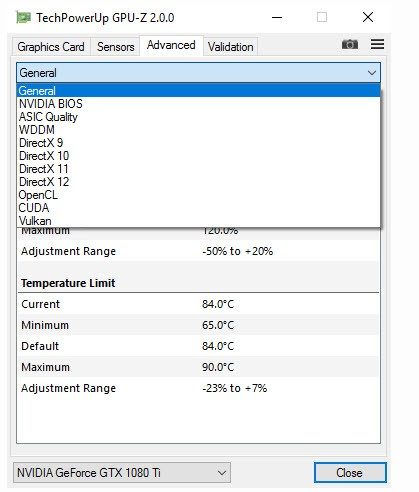
The difference is in the data granularity. When you run a generalist tool, you get basic clock speeds and temperature. With GPU-Z, you get the full story. You see the exact DirectX and OpenCL support levels. You can verify if the card actually supports the latest GPU architectures. You can see if SLI or Crossfire is active, even if the operating system isn’t showing it clearly. It’s hyper-specialized diagnostic data that general tools simply don’t dig deep enough to retrieve.
Then there’s the footprint. Generalist apps can be bloated. They load services, monitor dozens of sensors, and sometimes slow down the very machine you’re trying to check. GPU-Z is lightweight. It’s quiet. It sits there, taking up almost no memory, ready to give you a snapshot without impacting performance. That’s why techs prefer it for quick diagnostics. It’s not trying to be your desktop companion; it’s a scalpel, not a hammer.
The Free-to-Use Model That Keeps It Relevant
Another reason to stick with GPU-Z is the lack of a paywall. There is no “Pro” version. There is no student discount (because you don’t need one). There is no subscription fee.
In an era where software companies chop off features to force upgrades to premium tiers, GPU-Z offers the full feature set to everyone. This open access has cemented its place in the IT community. Whether you’re a hobbyist tweaking overclocks or a professional diagnosing a customer’s rig, the tool works the same way for you. No locked metadata. No blurred sensor readings. Just raw data.
This accessibility explains its longevity. It doesn’t need to innovate its business model because its product is the utility. Users download it, use it, and keep using it.
Keeping GPU-Z Updated for Modern Hardware
Hardware moves fast. New GPU architectures drop every year. Drivers get patched. If you’re using an old version of GPU-Z, you’re flying blind. You might not see the correct thermal limits, or worse, you might misread the clock speeds because the software doesn’t understand the new chip’s behavior.
The developers update the tool regularly to support new cards and fix security issues. There’s no automatic background updater that hogs your bandwidth, so you need to check manually.
Here’s the practical approach:
- Check the official source occasionally.
- When a major version drops, download it.
- Replace the old executable.
It’s not complicated. But skipping updates means you’re using a flashlight in a dark room when you could be using a strobe light. Compatibility with the latest drivers is non-negotiable if you want accurate readings.
Community Support and Long-Term Reliability
You won’t find a certified training program from the GPU-Z developers. You won’t get a dedicated help desk. Instead, you get a massive, active community. Forums are filled with discussions about weird sensor readings, driver conflicts, and how to interpret obscure metadata fields.
The documentation is sufficient for most users, but for the tricky stuff—like troubleshooting a flickering display or verifying VRAM timing—the community is your best resource. Guides and tutorials abound online, breaking down exactly what each tab in the interface means.
For IT professionals and enthusiasts alike, GPU-Z remains the gold standard for Windows-based GPU diagnostics. It’s reliable. It’s flexible. It’s free.
The interface balances depth with clarity, which is rare. You can dig into the sensors tab for millisecond-by-millisecond voltage spikes, or just glance at the basic information tab to confirm you have an RTX 4090 instead of a 4080. It keeps you in control.
And since it’s freely available on sites like Futura, there’s no barrier to entry. You just need to know where to look.
Is it the only tool you’ll ever need? Probably not. But for anything related to the graphics card, it’s the first tool you should open. Everything else is secondary.

GPU-Z: What It Is and Why You Need It for Your PC
If you are digging into your PC’s hardware, GPU-Z is usually the first tool you encounter. It is a lightweight utility designed to peek under the hood of your graphics card. The goal is simple: show you exactly what hardware you have running your display, your games, or your rendering tasks. There is no bloatware. No installation wizard. Just an executable you run and an interface that populates with data.
This matters because modern PC building and troubleshooting are opaque. You buy a card. You plug it in. But do you actually know the exact revision? Is the BIOS authentic? Are the fans spinning at the right RPM? GPU-Z answers these questions by reading the SPD (Serial Presence Detect) on the GPU itself. It does not guess. It reports.
The Tech Behind the Interface
The application is built by TechPowerUp. It is freeware. You can use it for personal projects or professional audits. It runs on Windows 7 through Windows 11. Both 32-bit and 64-bit systems are supported. The tool relies on the drivers already installed on your machine. If you have NVIDIA, AMD, or Intel graphics, the software can talk to the silicon.
The file size is tiny. A few megabytes. You can keep it on a USB drive. Plug it into an offline machine. Run it. Get the specs. No internet connection is needed for the core diagnostics. This portability makes it a staple for IT professionals doing on-site repairs. They do not need to install software. They just need the executable.
However, the internet has a role. You need it to download the latest version. You need it to verify the card’s authenticity through online validation. Without a connection, you are working with stale data or an old build. The software allows you to export logs as text files. This is useful for sharing details with forums or support teams.
Compatibility and Hardware Support
The tool supports major GPU vendors. NVIDIA. AMD. Intel. It reads the GPU name, the GPU clock, the memory clock, and the memory size. It also checks the BIOS version. This is critical for gamers overclocking their cards or editors checking VRAM limits.
Here is a quick look at the specifications:
- Name: GPU-Z
- Developer: TechPowerUp
- License: Free (Freeware)
- OS Support: Windows 11, 10, 8, 7 (32/64-bit)
- Architecture: x86 and x64
- Type: Portable executable
- Dependencies: Manufacturer graphics drivers
- Export: Text logs for sensors and info
The interface is in English only. This is a minor limitation for some users, but the data is universal. The numbers do not need translation. The metrics are standard across the industry.
Why Offline Use Still Matters
You might wonder why anyone uses a tool that works offline when updates are available. The answer is stability. Online tools can change. Drivers can break. A local version of GPU-Z gives you a consistent baseline. It is a snapshot of your hardware at a specific moment.
For system administrators, this consistency is valuable. When auditing a fleet of workstations, you need a tool that behaves the same way on every machine. GPU-Z delivers. It does not require admin rights to run basic checks. It does not modify system settings. It is read-only. This makes it safe. It is non-intrusive.
The validation feature is where the internet comes back into play. By uploading your logs to the TechPowerUp website, you can check if your GPU is genuine. Counterfeit cards often report fake specs. The online validator helps catch these scams. It is a necessary step if you are buying used hardware.
Getting and Running the Tool
You can download GPU-Z from the official TechPowerUp site or

The Cost of Convenience in a Cloud-Native World
You don’t pay for the software. You pay for the convenience of not managing the infrastructure. That’s the deal, right? But look closer at the bill. It’s not just a subscription fee. It’s a tax on latency, on complexity, and on the sheer weight of dependencies you didn’t ask for but can’t delete.
When you migrate to the cloud, you’re trading capital expenditure for operational opacity. The vendor says it’s “serverless.” They’re lying, technically. There are servers. They’re just not yours. You don’t control the patching schedule. You don’t control the hardware refresh cycle. You control the API calls. And those are expensive.
Where the Money Actually Leaks
Most teams over-provision. Always. It’s a safety net that becomes a anchor. You allocate resources for peak load because you’re scared of downtime. But peak load lasts for minutes. You pay for those minutes for 365 days. The math doesn’t add up unless your revenue scales linearly with those idle seconds.
Consider the data egress fees. You store terabytes in an object storage bucket. Cheap. Pennies per GB. But when a user in Tokyo requests that data, and the CDN needs to pull it from a region in Virginia, you pay for the bandwidth out. Again. And again. Every time. It’s not a one-time cost. It’s a recurring tax on mobility.
The Hidden Tax of Managed Services
Managed databases promise eight nines of availability. That’s great. Until you realize that “managed” means you’re locked into their specific ecosystem. You can’t easily move to a competitor. The proprietary extensions, the specific driver versions, the API quirks—they create a moat. And moats charge tolls.
You also pay for the “easy” features. Auto-scaling? That’s a premium. Multi-region replication? Premium. Backup retention beyond 30 days? Premium. These aren’t features. They’re leverage points. The vendor knows you’ve built your business logic on top of them. You can’t rip them out without rewriting half your stack. So you pay.
Why Open Source Isn’t Free Anymore
You think you’re saving money by using Kubernetes? Or PostgreSQL? The software is free. The support isn’t. The engineering hours to maintain it are. The security audits are. The uptime guarantees are.
Open source shifts the cost from the vendor to you. You become the infrastructure team. You’re debugging kernel panics at 2 AM. You’re managing certificate rotations. You’re optimizing query plans. All for free. The only thing free is the license. The rest is salary.
The Real Question: What Are You Actually Buying?
Are you buying uptime? Or are you buying insurance against your own incompetence?
Most companies can’t manage their own hardware. Not because they’re lazy. But because the world moved on. The complexity of modern distributed systems is too high for small teams. So they buy abstraction layers. And abstraction layers are expensive.
You’re paying for the ability to forget that infrastructure exists. That’s the value proposition. But the bill keeps coming. And it’s getting heavier.
You don’t own the cloud. You rent it. And the rent is due every month.
The trend is clear.


