



Microsoft 365 Copilot isn’t just another chatbot. It’s the first serious attempt to weld generative AI directly into the tools you already use every day. We’re talking about deep integration into Word, Excel, PowerPoint, Outlook, Teams, and OneNote. It’s designed to kill the tedious stuff: summarizing long meetings, drafting emails, churning through data, or building the skeleton of a slide deck before you even open the app.
The goal? Contextual assistance. Instead of staring at a blinking cursor, you ask for what you need. Copilot reads the room. It adapts its suggestions based on your specific work context, moving far beyond the rigid scripts and macros of the old Office era. This is where it stops feeling like software and starts feeling like a colleague who actually knows what you’re working on.
How Copilot Changes the Way You Build Documents and Data
The shift from rule-based macros to machine learning is massive. Older versions of Office required you to tell the computer exactly what to do, step by step. Copilot understands intent.
In Excel, it doesn’t just calculate; it analyzes. In PowerPoint, it doesn’t just format; it suggests structure. In Outlook, it writes the response for you. This makes the suite far more relevant for professionals drowning in data, students trying to organize research, and individuals who just want to get things done faster.
Copilot sits at the intersection of a virtual assistant and an advanced automation engine.
It’s not trying to replace you. It’s trying to remove the friction between having an idea and executing it.
Which Devices and Subscriptions Support Microsoft 365 Copilot?
Compatibility is a common sticking point, but Microsoft has made sure Copilot lives where you work. It runs natively on Windows and macOS desktops. It’s also available on Android and iOS, covering your smartphones and tablets. If you prefer not to install heavy clients, the web versions of Microsoft 365 tools include the assistant, provided you have a stable internet connection.
Here’s the catch: there is no standalone download. You can’t just download a “Copilot.exe” file. It is an add-on module. To get it, you need an eligible Microsoft 365 subscription.
- For Organizations: IT admins activate it through the Microsoft 365 Admin Center using license management.
- For Individuals: You turn it on through your account settings.
On desktops, Copilot appears automatically once you run regular Microsoft 365 updates. On mobile, you get it by updating the Microsoft apps on Google Play or the Apple App Store. On the web, it’s just there, baked into the interface.
Why Native Integration Beats Standalone AI Tools
Microsoft’s strategy is clear: don’t force users to switch apps. Keep them in the ecosystem. This is where Microsoft 365 Copilot separates itself from generic AI competitors.
Because it’s native, it talks to OneDrive seamlessly. It handles collaborative workflows inside Teams without friction. It manages data security within Microsoft’s cloud infrastructure. You get proactive help at every stage of the document lifecycle, from drafting to sharing, without ever leaving the workspace.
It’s a tighter fit than any third-party plugin could ever be. The data stays where your work is, which is a huge win for enterprise security and personal workflow consistency.
How to Activate and Keep Microsoft 365 Copilot Updated
Getting access is straightforward, but maintaining it requires a bit of hygiene. Since Copilot relies on cloud-based AI models, it needs a stable internet connection and, crucially, the latest versions of your apps.
Outdated clients won’t have the latest features. Or worse, they might not work at all. Regularly forcing updates on your desktop and mobile applications is the only way to ensure you’re getting the newest innovations and maintaining compatibility.
Keep in mind that access can be restricted based on your location, your specific subscription tier, or your company’s IT policies. Some features, particularly those relying heavily on cloud-based AI processing, might be gated behind enterprise licenses. Check your admin dashboard if you’re in a corporate environment.
The landscape is moving fast. Today’s “standard” update might change tomorrow. But if you’re already deep in the Microsoft 365 ecosystem, Copilot is the most logical next step to stop doing manual work by hand.
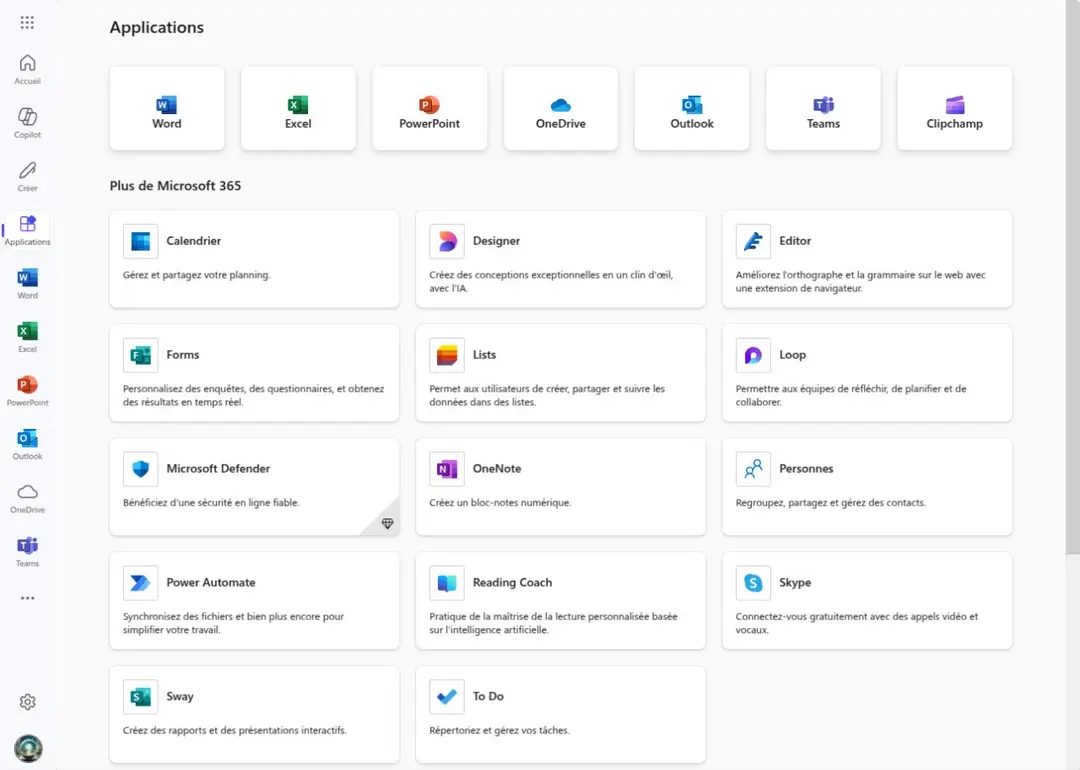

How to access Microsoft 365 Copilot without paying for a separate app
You cannot download Microsoft 365 Copilot as a standalone file. There is no installer. It lives inside the Microsoft 365 ecosystem, which means your access depends entirely on your subscription status. If you are looking for a way to use the AI features for free, your options are limited but real. Microsoft frequently runs trial periods for new professional clients. Educational institutions are a bigger opportunity. Many university and college packages include the Copilot module in their base offering. This means students, faculty, and academic staff often get full access to the AI capabilities without an extra line item on their bill.
Which licensing model fits your organization?
For most businesses, Copilot is a paid add-on to your existing Microsoft 365 subscription. The price tag changes based on which tier you are on (Enterprise, Business, Family, or Education) and how many users you are covering. IT admins can toggle the feature on or off for specific staff members through the Microsoft 365 Admin Center. This granular control lets companies decide exactly who gets the AI boost and who doesn’t. The logic here is straightforward: you are paying for advanced analytics and intelligent assistance to streamline workflows. It is not a one-time purchase. It is a value-added service layered onto your core productivity suite.
Can I roll back to an older version of Copilot?
No. You cannot download an older version of Microsoft 365 Copilot. Microsoft operates on a cloud-first model. Updates are pushed from the server to your eligible devices. There is no rollback option. If you want to ensure you have the latest features, you can force a check for updates through the Office suite settings or the Microsoft 365 web portal. This continuous update cycle is not just about new features. It also delivers critical security patches to your working environment. You either stay current or you lag behind on both capability and protection.
How does Copilot actually change daily workflows?
The utility of Microsoft 365 Copilot extends far beyond writing emails. It automates meeting summaries, generates analytical tables, builds visual presentations, and organizes your calendar. In an enterprise setting, the integration with Teams, OneDrive, and SharePoint creates advanced scenarios. Imagine automatic synthesis of group chat history. Or personalized recommendations for project organization. Reporting operations that used to take hours can now be automated. This shifts the focus from manual data handling to strategic decision-making.
Where to learn and how to get certified
Microsoft provides a suite of learning resources directly in its online training center. You will find interactive tutorials, video guides, and self-assessment modules. These are not just introductory tips. There are professional certifications available that validate your mastery of Copilot and applied AI within the Microsoft 365 environment. Earning these credentials can boost your employability in the digital market. It signals that you don’t just know how to type prompts. You understand the operational and ethical implications of using AI in a professional context.
What is coming next for AI productivity tools?
The trajectory for Microsoft 365 Copilot is upward. We can expect complementary modules, certified training pathways, and integrations with third-party applications within the Office suite. As AI capabilities expand, the tool will likely offer deeper personalization. The investment in ongoing training and user adoption is key. It reinforces the security and reliability of the platform. For modern organizations, Copilot is becoming less of a novelty and more of an infrastructure component. The question is no longer whether to adopt it, but how to integrate it effectively without compromising workflow efficiency.


How to check if your Microsoft 365 setup supports Copilot
You cannot download Microsoft 365 Copilot like a standalone app. There is no installer file to run on your desktop. It is an integrated module. It lives inside the applications you already use.
To activate the AI assistant, your organization needs an eligible Microsoft 365 subscription. Once the license is applied to your user account, the feature turns on automatically. You do not install it. You just start using Word, Excel, PowerPoint, Outlook, Teams, OneNote, or the web versions of these services.
The platform is cloud-first. That means your computer, tablet, or phone needs an active internet connection. The AI processing happens in the cloud, not locally on your hardware.
Which operating systems and apps work with the Copilot AI assistant
Copilot runs where Microsoft 365 runs.
- Desktop: Windows and macOS
- Mobile: Android and iOS/iPadOS
- Web: Online versions of Microsoft 365 apps
The assistant integrates with core productivity tools. You will find it in:
- Word
- Excel
- PowerPoint
- Outlook
- Teams
- OneNote
- Microsoft 365 online services
It is multilingual, supporting whatever languages your Microsoft 365 environment supports.
Why Copilot requires a continuous update and cloud connection
Deployment is not a one-time event. Microsoft manages updates continuously through standard Microsoft 365 updates and cloud service patches. If your apps are outdated, Copilot features may not appear or may behave inconsistently.
Data governance follows your existing Microsoft 365 security policies. Copilot does not create a separate security boundary. It operates within the same governance framework as your organization’s data.
Cloud integrations are central to its function. Copilot connects to:
- OneDrive
- SharePoint
- Exchange Online
- Microsoft Graph
These services provide the context Copilot uses to generate responses and perform tasks. Without these connections, the assistant has no data to work with.
How to verify compatibility before enabling Microsoft 365 Copilot
Check your license eligibility first. An admin or user must have the appropriate Microsoft 365 subscription.
Next, ensure your Office apps are current. Update them on Windows, macOS, Android, or iOS. If you use web-based access, make sure you are logged into the correct Microsoft 365 tenant.
Once the license is active and apps are updated, Copilot appears within the compatible tools. You do not launch it separately. It is embedded in the interface of the apps you already use.
Support comes from Microsoft 365 documentation and online training resources. If you hit a wall, the standard Microsoft 365 assistance channels apply. No separate support tier exists for Copilot alone.




The update rolls out incrementally. You won’t get it all at once. Some users will see the new features first, while others wait weeks. This is standard practice to catch bugs before they become widespread. If you’re testing the latest build, expect occasional glitches. That’s the tradeoff for being early.
How the new dashboard handles your data
The redesign isn’t just cosmetic. The backend processes your inputs differently now. When you drag a file into the upload zone, the system validates the format before you even click submit. If the file type doesn’t match, you get an immediate error. No waiting for a server response.
This matters if you batch upload hundreds of files. Previously, you’d hit a wall halfway through. Now, the tool skips invalid entries and flags them in a summary report. You can fix the bad files and re-run the batch without starting over.
Why does this save time? Because manual triage is slow. You used to open each file, check the extension, and decide what to do. Now the software does that work for you.
Which file types are supported now
The list has expanded. You can now upload:
.csv(with UTF-8 encoding).xlsx(Excel 2016 and later).json.xml.pdf(for reference documents only, not for data extraction)
The .pdf support is new. Previously, you had to convert PDFs to CSV before uploading. That step is gone. If you’re working with scanned documents, though, you still need OCR software. The tool doesn’t read handwritten text or images inside PDFs.
One caveat: large files. Anything over 50 MB triggers a warning. You can proceed, but the upload speed will drop significantly. If you’re on a slower connection, consider splitting your files.
Where the integration hooks go
The API endpoints have changed. If you’re using webhooks or custom scripts, you’ll need to update your URLs. The old /v1/ endpoints are deprecated. They’ll stop working in 90 days.
New endpoints live under /v2/. The documentation is on the developer portal. It’s not pretty, but it’s clear. You’ll find examples for Python, JavaScript, and curl.
If you’re not a developer, this might not affect you. But if you’ve built any custom automation around this tool, check your scripts now. A broken webhook won’t send you an error message. It’ll just stop working. You’ll notice when your data stops flowing.
Why the pricing structure shifted
The free tier is gone. Not entirely. There’s still a free plan, but it’s limited to 10 uploads per month. If you’re using this for personal projects, that might be enough. If you’re using it for work, you’ll need the Pro tier.
Pro costs $12 per user per month. It includes unlimited uploads, priority support, and access to the new dashboard features. Team licenses are cheaper per user if you buy five or more.
Is it worth it? If you’re saving hours of manual data cleanup, yes. If you’re just uploading a few files once a week, the free tier might suffice. Do the math based on your actual usage.


