Stop clicking the same spot on your screen until your wrist aches. You don’t need to be a coder to automate boring tasks. You just need Free Mouse Auto Clicker. It is a lightweight utility for Windows that handles repetitive clicking so you can focus on things that actually matter. The interface is stripped down. Bare bones. If you know how to click a mouse, you know how to configure this tool.
Why Automate Mouse Clicks?
People use auto-clickers for reasons that range from professional efficiency to gaming frustration. Maybe you are testing a software release and need to click “Next” on fifty dialogs. Or maybe you are grinding in an MMO and your finger is tired. The logic is simple. The software executes a sequence of clicks at regular intervals.
You control the rhythm. You decide the delay between clicks. You pick the button type—left click, right click, or double click. It runs in the background. It doesn’t demand a subscription. It doesn’t even require an internet connection once installed. This makes it ideal for users who want immediate access without creating accounts or jumping through hoops.
Installation and Compatibility
Getting the software running takes seconds. Download it from the official site or a trusted repository like Futura. The file is small. Standard broadband connections will have it downloaded before you finish reading this sentence.
Once downloaded, run the executable. Accept the terms. Done. It is a portable application. It leaves almost no footprint on your hard drive. You can uninstall it via Windows’ standard panel later without leaving messy traces behind.
The real strength here is compatibility. Free Mouse Auto Clicker supports every major version of Windows. We are talking Windows XP through Windows 11. This universality matters for IT departments managing mixed fleets of old hardware and new PCs. It just works.
However, there is a hard limit. This tool is Windows-only.
If you are on macOS, Linux, Android, or iOS, you are out of luck. There is no native version for these platforms. You will need to look for alternative automation software designed for your specific OS or spin up a Windows virtual machine. Trying to force this software onto a Mac will fail.
Configuration and Daily Use
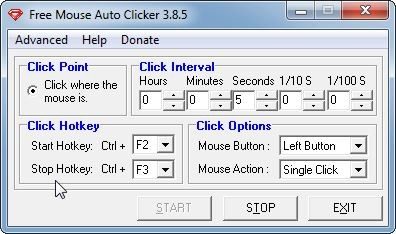
Once installed, the dashboard is straightforward. You define the delay. You select the hotkey to toggle the clicker on and off. This toggle is crucial. You don’t want the mouse clicking randomly while you try to work. The hotkey gives you immediate control.
One thing to watch for involves antivirus software. Sometimes, heuristic detection flags automation tools as suspicious. This is a false positive. If the installation blocks, you may need to temporarily disable aggressive antivirus protections. It is a known quirk of low-level automation tools.
Updates don’t happen automatically. The minimalist design means no background updater service. To get the latest version, you have to manually check the developer’s site or trusted third-party libraries. This isn’t a flaw, really. It is intentional. You decide when to update. You decide if the change is worth it.
The tool is resource-light. It consumes negligible CPU and RAM. It runs quietly. For anyone tired of repetitive strain or simply wanting to speed up monotonous digital tasks on a PC, this remains one of the most accessible solutions available. The lack of cross-platform support is a limitation, but for the vast majority of Windows users, it does little to diminish its utility.
La licence de Free Mouse Auto Clicker est straightforward. It’s free. Not freemium. Not “free for evaluation with watermarks.” Total. No paywall, no license key required, no intrusive ads popping up while you wait. This matters because most automation tools lock basic features behind a subscription. Here, students, freelancers, and small businesses get full access without spending a dime.
There is no official certification program. There is no mandatory training. The interface is intuitive enough that you can start automating clicks within minutes. If you hit a wall, the community fills the gap. Unofficial video tutorials and forum threads cover edge cases. You won’t find a manual from the developer. You’ll find workarounds from users who already solved the problem.
Finding Older Versions and Updates
Compatibility is a real concern for older systems. Some users need legacy versions for obsolete Windows environments. The latest build is always recommended for security patches and bug fixes. But if you’re stuck on Windows 7 or an older hardware config, older releases still exist.
Where do you find them? Specialized software archives. Some third-party platforms keep version histories. The developer doesn’t host an auto-update service. You have to check manually. Periodically. Install manually. It’s a trade-off. You get control over your system. You also take responsibility for staying current.
Common Use Cases and Efficiency
Why use it? Repetitive clicks are a waste of time. Free Mouse Auto Clicker handles the monotony. Gamers use it for rapid-fire actions where speed and regularity matter. But it’s not just for gaming.
Software testers rely on it to validate application stability. Automated click sequences stress-test components. In office settings, it helps with batch file conversion or data entry into rigid interfaces. Productivity gains are real. But don’t automate critical actions without human verification. Automated errors are still errors.
Comparing Alternatives
How does it stack up against competitors? AutoClicker. GS Auto Clicker. TinyTask. These are the usual suspects. Some offer advanced scripting. Some work on multiple operating systems. Some require coding knowledge.
Free Mouse Auto Clicker doesn’t compete on complexity. It competes on simplicity. Lightweight execution. Near-zero learning curve. Clear configuration options. If you need deep customization, look elsewhere. If you just need clicks to happen reliably, this is the pragmatic choice.
Security and Download Sources
Is it safe? The software has been around long enough to build a reputation. It’s recognized. Trusted by the community. But “trusted” doesn’t mean “safe from all sources.”
Malicious modified versions exist. They mimic the real software. They contain malware. The only way to avoid this is source verification. Download from reputable sites. Futura is one example. Avoid random torrent links. Avoid obscure download portals. Integrity matters more than convenience.
This isn’t a magic bullet. It’s a tool. It works well for specific tasks. It doesn’t replace judgment. It doesn’t replace verification. But for repetitive, low-stakes clicking? It’s reliable. Free. And effective.
Whether you’re testing a web app or grinding a game, the logic holds. Automate the mundane. Keep the critical manual. Check your sources. Update when you can. That’s the strategy.
The line between helpful automation and risky dependency is thin. Most users stay on the safe side. They verify. They adjust. They move on. But what happens when the automation starts making decisions for you? That’s a different conversation. For now, the clicks are just clicks.

You don’t need a server farm to run this thing. It’s built for the Microsoft ecosystem. The program runs autonomously. No internet connection required once it’s installed. It leans on native Windows components. That’s it. This design choice is what makes it light. It handles old hardware just as well as new machines. There’s no special configuration needed. The executable works on 32-bit editions. It runs smoothly on 64-bit systems too. This ensures long-term compatibility.
What you can actually control
The interface is minimal. English only. But it does what you need. You select the mouse button. Left or right. The interval between clicks is adjustable. Down to the millisecond. You can set a keyboard shortcut to start or stop the sequence. It runs in the background. Impact on your PC is minimal. The system footprint stays small. You don’t need admin rights. A standard user account is enough. This makes deployment easy. Especially in office environments or for testing scripts.
Why this matters for everyday users
Most people think of automation as complex code. Or expensive enterprise software. This tool sits between “do nothing” and “write a script.” It fills the gap. You’re automating a physical action. Clicking. Without needing to know Python or AutoHotkey. For repetitive tasks, this saves time. And frustration. The low resource usage means your browser stays snappy while the clicker works quietly in the tray.
Installation and safety
Get it from a verified source. The Futura software library is one option. It’s a reliable, checked source. Avoid sketchy download sites. The installer is standard. Minimal system impact. No extra libraries required. It relies on Win32 native functions. That reduces bloat. And potential conflicts with other software.
Key technical details at a glance
- Name: Free Mouse Auto Clicker
- Category: Utilities > Automation > Mouse
- License: Freeware (Free)
- OS: Windows XP through Windows 11
- Architecture: 32-bit executable, compatible with 64-bit
- Interface: English (minimalist)
- Type: Desktop .exe application
- Installation: Classic installer, minimal footprint
- Permissions: Standard user account usually suffices
- Internet: Not required for operation
- Dependencies: None (uses native Win32)
- Key Settings: Adjustable click interval, left/right button selection, configurable keyboard shortcuts
- Resource Usage: Low CPU and memory footprint
- Compatibility: Works with standard keyboards/mice, single or multi-monitor setups
Where it fits in your workflow
Consider where the friction is. Is it a game? A tedious data entry task? A monitoring bot? The tool doesn’t care. It just clicks. The precision is there if you need it. The millisecond-level adjustment means you aren’t stuck with clunky, slow clicks. But for most people, setting it to “fast” and walking away is the goal. The open-ended nature of the task leaves room for interpretation. What you automate next is up to you.